 Transcriber
Everyday communication shouldn't require a support team. But if you're deaf or hard of hearing, you know the reality: the hearing world mostly doesn't sign, interpreters can't be everywhere, and lip-reading — exhausting on a good day — fails completely with masks, mumblers, and people who talk while looking away. What's left is a thousand small daily negotiations: the pharmacist's question, the plumber's explanation, the colleague who drops by your desk, the grandchild telling a story too fast.
A communication app for deaf people should handle exactly those moments — instantly, without setup, without asking the other person to download anything. That's what Transcriber is built for. It turns your iPhone into a live conversation display: the other person talks, you read. This guide covers how it works face-to-face, and how deaf and hard-of-hearing users get the most from it.
What Is a Communication App for Deaf People?
The term covers several kinds of tools: video relay services for phone calls, sign language dictionaries, text-relay systems, and speech-to-text apps. For in-person conversation — the situation people face most often — speech-to-text is the most practical category, because it requires nothing from the hearing person except talking normally.
What separates a purpose-built tool like Transcriber from a generic dictation app is the details that matter mid-conversation:
- Large, high-visibility text by default. Transcripts are readable at a glance and at a distance, not in a tiny notes-app font.
- Flip mode. A single tap rotates the text 180°, so the phone can sit between two people and the transcript reads correctly for the person opposite you. One phone, two directions of communication.
- Zero latency, zero internet dependency. Recognition runs on the phone, so the words keep up with natural speech and the app works in elevators, basements, and abroad.
- Privacy by architecture. Medical appointments and family matters are transcribed on your device only — no audio is ever uploaded.
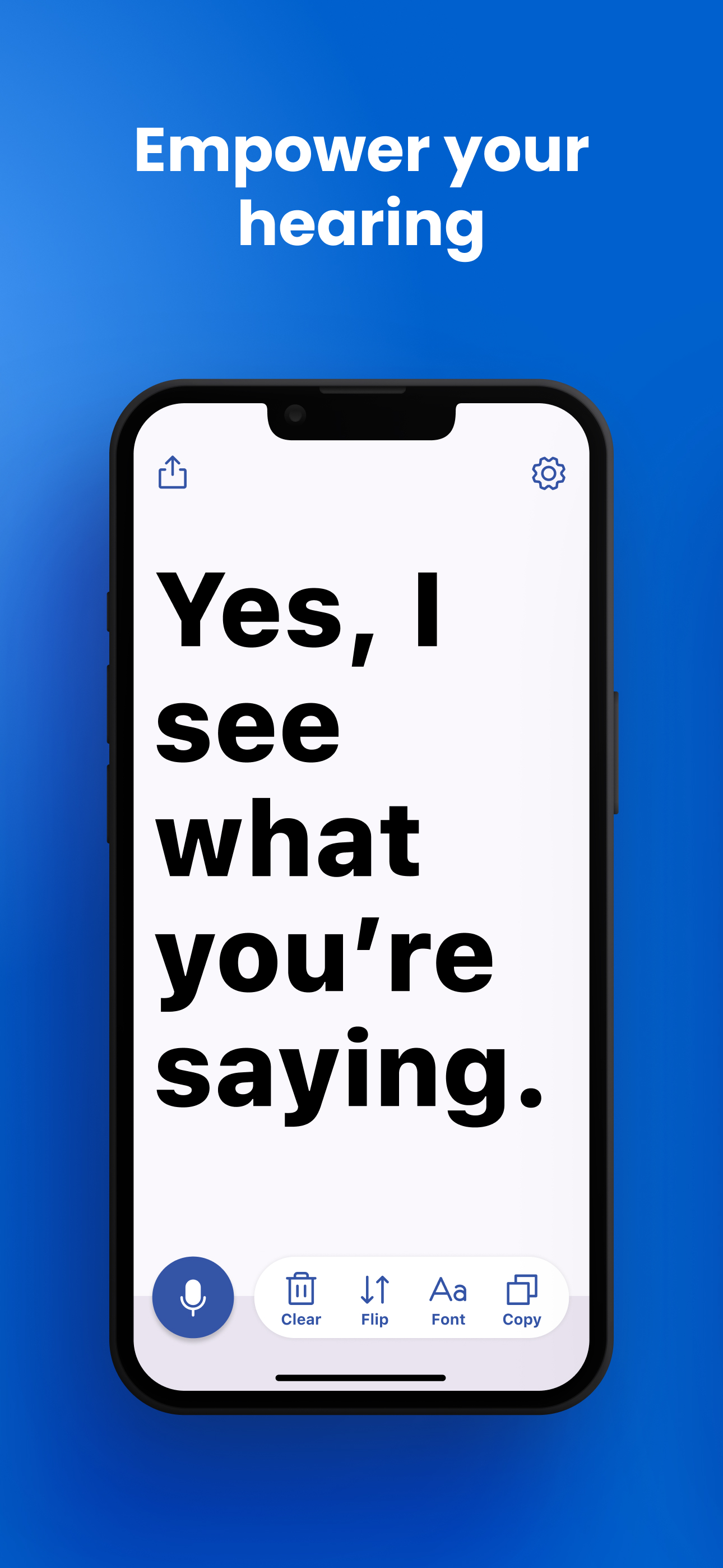
How to Use Transcriber for Face-to-Face Conversations
- Set it up once, in under a minute. Download Transcriber free, grant microphone and speech permissions, and choose your language from the 50+ available.
- Start every conversation with one tap. Open the app and tap the microphone. There's no session to configure — this speed matters when a stranger has already started talking.
- Position the phone between you. On a counter, a desk, or held loosely in your hand. The microphone picks up normal conversational speech from about a meter away.
- Read as they speak. The other person talks at their natural pace; their words stream onto the screen in large print. No need to ask them to slow down or repeat — though the transcript makes it easy to point at a word if something needs clarifying.
- Flip the screen to respond or confirm. Tap Flip and the text rotates toward the other person. Show them what the app heard, or let them read your typed reply. Many users run whole conversations this way with one phone lying flat between two chairs.
- Keep the important parts. Copy the doctor's dosage instructions, the mechanic's estimate, or the meeting summary and paste it anywhere — Messages, Mail, Notes.
The same setup covers group situations: place the phone near the main speaker at a family dinner or a small meeting, enlarge the font, and glance at it like a personal caption screen. For lectures and events, see our live captioning guide.
Tips for Best Results
- Make the phone's role obvious. Most hearing people instantly get it — a quick "this shows me what you're saying" and the conversation flows normally.
- Aim the mic at the speaker in noisy places. Distance and background noise are the two accuracy killers; a hand's-width closer makes a real difference.
- Preset a big font for appointments. Set the size before you walk in so the transcript is effortless from where you'll sit.
- Use it with your hearing devices, not instead of them. Hearing aids and CIs give you tone and rhythm; the text guarantees the words.
- Switch languages for multilingual families. Two taps moves the recognition from English to Spanish, French, or 50+ other options.
Frequently Asked Questions
Yes. Transcriber requires no hearing at all — it converts speech to text visually. Deaf users read the transcript and reply by speaking, typing, or showing text with Flip mode. It works regardless of whether you sign, lip-read, or neither.
No. The entire conversation runs on your iPhone. The other person just talks normally — no app, no account, no explanation needed beyond a glance at the screen.
One tap rotates the transcript 180° on your screen. Lay the phone flat between you and the person opposite, and the text reads correctly from their side — useful for showing them what was transcribed or holding a two-way text conversation on a single device.
Yes. Transcriber processes all speech on the device itself; no audio or text is sent to any server. Sensitive conversations stay between you, the other person, and your phone.
Transcriber transcribes whoever the microphone hears best, so in groups it works best placed near the current speaker. It doesn't label different speakers, but for following the thread of a meeting or dinner it's very effective.
Download Transcriber Free
Real-time speech to text in 50+ languages. Free to start on iPhone, iPad, Mac, and Apple Vision Pro.
Download on the App Store