 Transcriber
Captions have quietly become how the world watches video — and once you rely on them, their absence everywhere else is glaring. The all-hands meeting has no captions. The university lecture has no captions. The conference talk, the town hall, the wedding speech, the tour guide: no captions. If you're hard of hearing, in a loud room, or just processing better by reading, those are exactly the moments you need text the most.
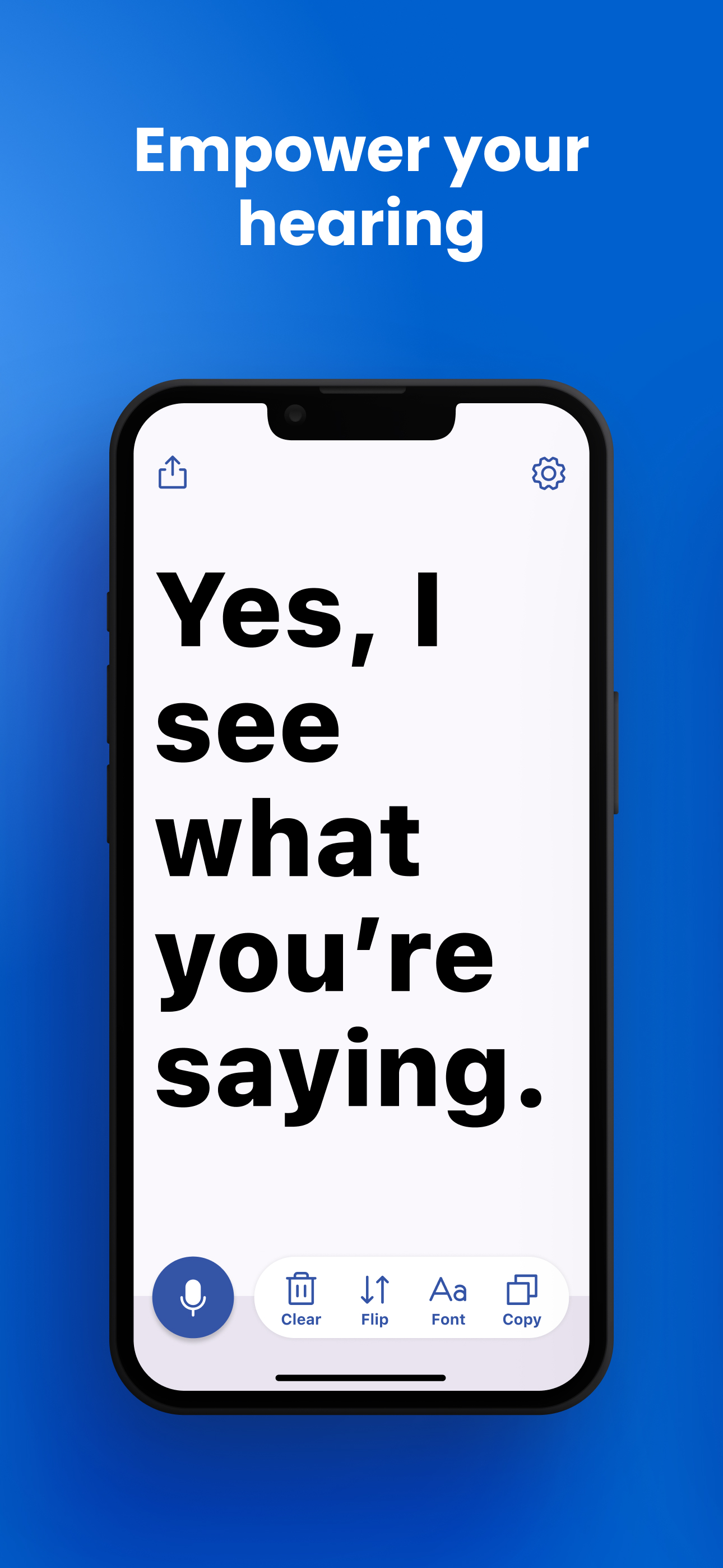
A live captioning app closes that gap by generating captions for the room you're actually in. Transcriber turns your iPhone into a personal caption display: open it, tap once, and everything spoken around you streams onto the screen as large, readable text — with no internet required and no audio sent anywhere. Here's how to caption meetings, lectures, and live events with it.
What Is a Live Captioning App?
A live captioning app transcribes ambient speech in real time and displays it as scrolling text — like broadcast captions, but generated locally for whatever is happening around you. It's different from video captions (baked into content) and from call captioning (built into phone services). The quality bar for real-world use comes down to four things:
- Latency. Captions that lag three seconds behind the speaker are disorienting. Transcriber's on-device recognition keeps text moving with the speaker's voice.
- Readability. Captions are read at a distance, repeatedly, for long stretches. Transcriber displays large, high-contrast type with a one-touch font-size control that goes genuinely big.
- Reliability. Conference Wi-Fi and lecture-hall basements are where cloud captioning dies. On-device processing means Transcriber doesn't care about signal.
- Endurance. A lecture is 90 minutes; a conference day is 8 hours. Efficient local processing and no data streaming keep battery use manageable.
How to Use Transcriber for Live Captions
- Download and set your language. Transcriber is free on the App Store. Pick from 50+ languages — including the right regional dialect for better accuracy.
- In meetings: place the phone toward the center of the table, tap the microphone, and glance at it like a caption monitor. Enlarge the font so you can read it without leaning in. When something important lands — a decision, a deadline — the transcript has it verbatim; copy it before you leave the room.
- In lectures: sit within range of the lecturer (front rows help), prop the phone on your desk in landscape, and let the captions run. You get the spoken layer — asides, examples, exam hints — that never makes it onto the slides. Afterwards, copy the transcript into your study notes.
- At events and gatherings: talks, tours, religious services, family speeches. Hold the phone or set it down facing you; captions stream discreetly, and nobody needs to accommodate you for it to work.
- For TV and media without captions: put the phone near the speaker and Transcriber captions what it hears — a practical fallback for uncaptioned streams, radio, and podcasts played out loud.
- Share the record. Any caption session can be copied or shared in full — meeting minutes, lecture notes, or just the one crucial sentence you'd otherwise have missed.
Tips for Best Results
- Proximity beats everything. Every meter closer to the speaker is an accuracy upgrade. In big rooms, sit near the front or near a loudspeaker.
- Landscape + large font for long sessions. More words per line means smoother reading over an hour-plus lecture.
- Use a stand. A cheap phone stand at eye level turns the setup into a proper caption display and saves your neck.
- Plug in for full-day events. A power bank makes battery a non-issue at conferences.
- Copy at every break. Grab the transcript so far at natural pauses — you'll never lose the record of the morning session.
Frequently Asked Questions
Apple's Live Captions is a useful accessibility layer, but Transcriber is a dedicated tool: much larger adjustable type, Flip mode to show text to another person, one-tap copy and share of the full transcript, and support for 50+ languages. If captions are central to your day rather than occasional, the dedicated app experience matters.
Yes. On-device recognition runs continuously for long sessions. For multi-hour use, plug into a power bank and copy the transcript at breaks.
Completely. Recognition happens on the phone, so captions work in basements, planes, and venues with saturated Wi-Fi — exactly the places cloud captioning fails.
Transcriber offers regional variants for many of its 50+ languages, which helps significantly. Picking the closest dialect to the speaker gives the best results.
Yes — enlarge the font and share the screen, or tap Flip mode to rotate the text 180° for someone sitting opposite you. One phone can caption for two.
Download Transcriber Free
Real-time speech to text in 50+ languages. Free to start on iPhone, iPad, Mac, and Apple Vision Pro.
Download on the App Store