 Transcriber
If you're searching for the best hearing aid app for iPhone, you've probably already discovered how confusing the options are. Some apps amplify sound through your headphones. Some try to filter background noise. Some cost as much per month as a real hearing aid costs per year — and many still leave you guessing at half of what was said. The frustration is real: missed punchlines at family dinners, mumbled instructions at the pharmacy counter, meetings where you nod along and hope for the best.
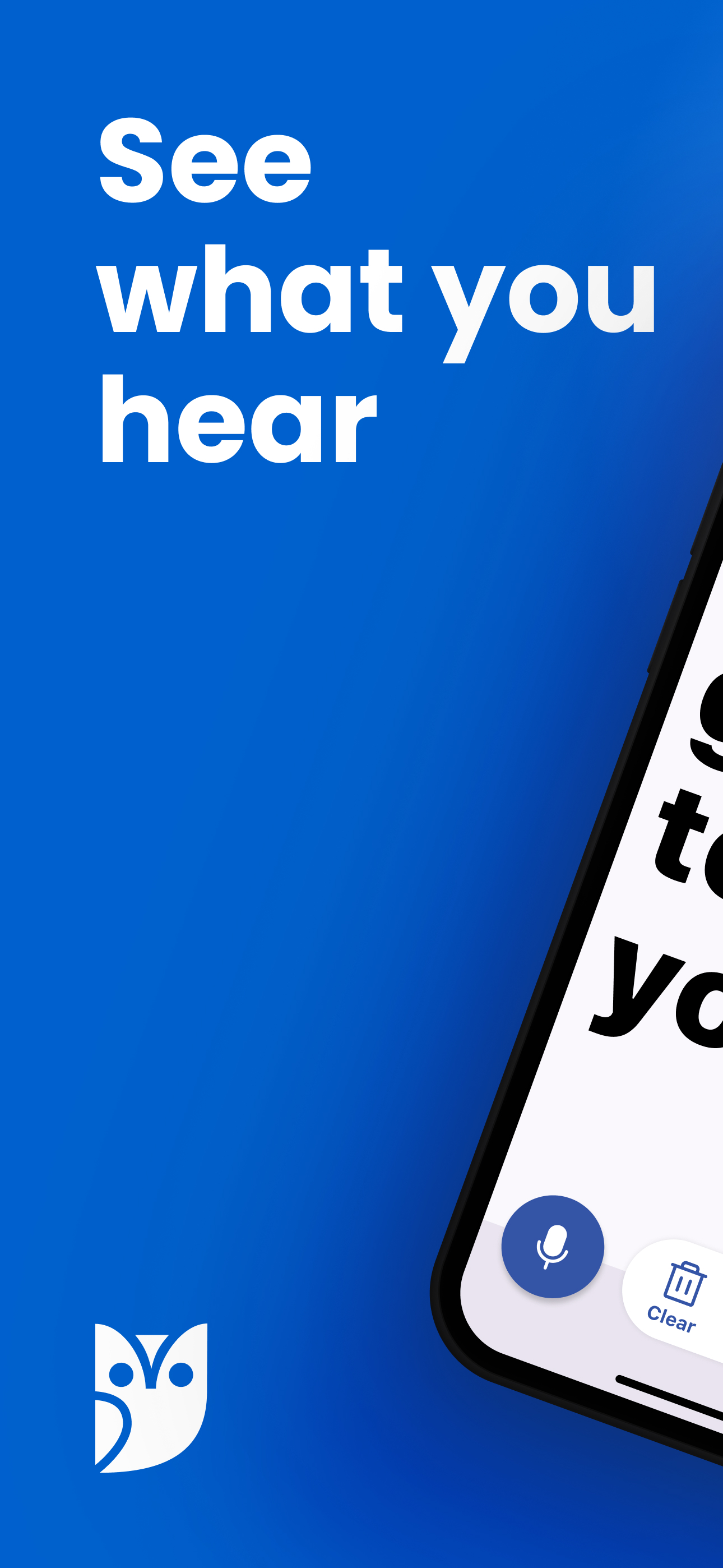
Transcriber approaches the problem differently. Instead of trying to make sound louder, it makes speech visible. Every word spoken near your iPhone appears on screen as large, high-contrast text in real time. This guide explains when a transcription-based hearing app is the right choice, how it compares to amplifier apps, and how to set up Transcriber as your daily hearing assistant.
What Is a Hearing Aid App?
"Hearing aid app" is an umbrella term for iPhone apps that help you understand speech. They fall into two broad families:
- Amplifier apps route sound from the microphone to your earphones, boosting volume and sometimes shaping frequencies. They can help with mild hearing loss, but they amplify background noise along with speech, drain your battery quickly, and are of little use for severe or profound hearing loss.
- Transcription apps convert speech to text so you can read the conversation instead of straining to hear it. Because they don't depend on your residual hearing at all, they work at every level of hearing loss — including for users who are completely deaf.
Transcriber belongs to the second family, and it's built specifically as an assistive tool rather than a general note-taking app. That's why the text is displayed extra large by default, why the font size can be pushed even larger with one control, and why Flip mode exists — a feature that rotates the text 180° so the person sitting across from you can read the screen while you hold the phone. For many users, the combination of a hearing aid for sound and Transcriber for confirmation is what finally makes conversations relaxed instead of exhausting.
How to Use Transcriber as Your Hearing Assistant
- Download the app. Get Transcriber free on the App Store. It runs on iPhone and iPad (iOS 15+), Mac (Apple Silicon, macOS 12+), and Apple Vision Pro. There's no account to create — the app is ready the moment it opens.
- Grant microphone and speech recognition access. On first launch, iOS asks for two permissions. Both are used only on your device: Transcriber processes speech locally, so no audio is ever uploaded anywhere.
- Pick your language. Choose from more than 50 languages and dialects. If your family switches between languages, you can change it in two taps mid-conversation.
- Tap the microphone and set the phone down. Place your iPhone on the table between you and the speaker, or hold it casually. Words appear on screen the instant they're spoken.
- Adjust the font until it's effortless. Use the font-size control to make the text readable at your natural viewing distance — across a desk, from a hospital bed, or propped on a counter. High contrast and a clean typeface mean no squinting.
- Use Flip mode for two-way conversations. When the other person needs to check what the phone heard — or wants to reply silently — tap Flip. The text rotates 180° so it reads correctly for the person facing you.
- Copy or share anything important. Doctor's instructions, an address, a phone number: tap Copy and the transcript is in your clipboard, or share it straight to Messages, Mail, or Notes.
Because recognition happens on-device, there is no lag waiting for a server and the app keeps working with no signal at all — in basements, on planes, in rural areas. That reliability matters when the app is standing in for your ears.
Tips for Best Results
- Get the mic within about a meter of the speaker. Distance is the single biggest factor in accuracy. On a restaurant table, slide the phone toward whoever is talking.
- Reduce competing noise when you can. Turning down the TV or choosing the quieter side of a café noticeably improves recognition.
- Ask people to speak normally, not slowly. Modern speech recognition is trained on natural speech; exaggerated slow talking can actually hurt accuracy.
- Keep your hearing aids in. Transcriber complements hearing aids and cochlear implants — sound gives you rhythm and tone, the text fills in the words you miss.
- Bump the font size before appointments. Set it large in advance so you're not fiddling with controls in the moment.
Frequently Asked Questions
An app can't replace medical treatment or a fitted hearing aid, and Transcriber doesn't try to. What it does is remove the guesswork: even the best hearing aid leaves gaps in noisy rooms, and reading the words on screen closes those gaps. Many users treat Transcriber as their backup ears — and for profound hearing loss, text is often more reliable than any amplification.
Yes, perfectly. Transcriber listens through the iPhone's microphone, completely independently of your hearing devices. Keep your hearing aids in for sound awareness and read the transcript whenever you miss a word.
Yes — this is exactly where transcription beats amplification. Amplifier apps need usable residual hearing; Transcriber needs none. Every word appears as large, high-contrast text, so it works for late-deafened adults, Deaf users, and anyone in between.
Transcriber is free to download and use. Pro unlocks unlimited transcription and all features for $9.99/month or $49.99/year — roughly the price of a single hearing aid battery pack subscription, versus $2,000–$7,000 for a pair of hearing aids.
No. Speech recognition runs entirely on your iPhone, so Transcriber works offline — and your conversations never leave your device.
Download Transcriber Free
Real-time speech to text in 50+ languages. Free to start on iPhone, iPad, Mac, and Apple Vision Pro.
Download on the App Store