 Transcriber
You need the words as they're spoken — not a recording you upload and wait on, not a transcript that arrives by email an hour later. Maybe you're following a fast-moving meeting, capturing a professor's lecture, keeping up with a conversation you can't quite hear, or grabbing an idea while your hands are busy. Whatever the reason, "real-time" is the requirement, and most transcription tools quietly fail it: cloud-based services add seconds of delay, choke on weak Wi-Fi, and send your private conversations to someone else's servers.
Transcriber does real-time speech to text the way it should work on an iPhone: recognition runs on the device itself, words appear on screen the instant they're spoken, and nothing you say ever leaves your phone. Here's how it works and how to get the most out of it.
What Is Real-Time Speech to Text?
Real-time (or "streaming") speech to text means audio is transcribed continuously while it's being spoken, with text appearing word by word — as opposed to batch transcription, where you record first and transcribe afterwards. The hard part is latency. There are two ways to do it:
- Cloud transcription streams your audio to a remote server and streams text back. Accuracy can be good, but every word makes a round trip across the internet. On weak connections the text stutters and stalls, and your voice data is processed — and often retained — by a third party.
- On-device transcription runs the recognition model on the iPhone's own Neural Engine. There's no round trip, so latency is effectively zero; there's no connection requirement, so it works in airplane mode; and there's no server, so privacy is structural rather than a policy promise.
Transcriber uses on-device recognition exclusively. That single design decision is why the text keeps flowing on the subway, why a two-hour lecture doesn't burn through your data plan, and why doctors and lawyers can use it with confidential conversations.
How to Use Transcriber for Live Transcription
- Install Transcriber. Download it free from the App Store — it works on iPhone, iPad, Mac (Apple Silicon), and Apple Vision Pro. No sign-up, no onboarding wizard.
- Allow microphone and speech recognition. iOS will prompt you once. Both permissions power on-device processing only.
- Select the language being spoken. Transcriber supports 50+ languages and regional dialects. Pick the one you need; you can switch anytime in two taps.
- Tap the microphone. That's the whole workflow. Speech becomes text on screen with no perceptible delay — you can watch words land as syllables leave the speaker's mouth.
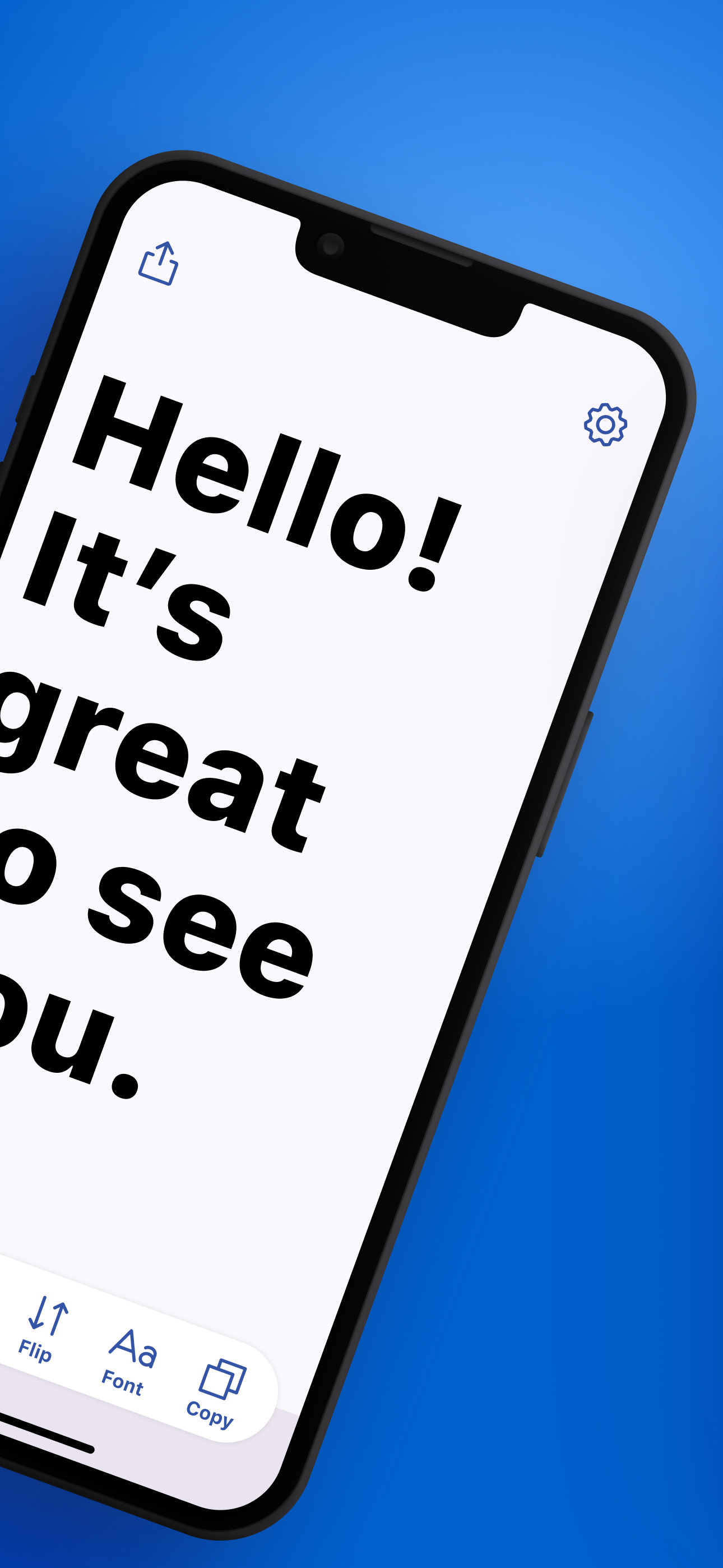
- Size the text for the situation. Reading it yourself at arm's length? Medium. Showing the phone across a table? Crank the font up. Presenting to a small group? Prop the phone in landscape and go bigger still.
- Use Flip mode when someone else needs to read. One tap rotates the display 180° so the transcript reads correctly for the person facing you — handy for two-way conversations.
- Copy or share the result. When the conversation ends, tap Copy to grab the full text, or share it to any app. Paste minutes into an email, a lecture into your notes, a quote into a document.
For dictating longer documents rather than following live conversation, switch to Notes mode — the same instant recognition, optimized for composing and sharing text hands-free.
Tips for Best Results
- Closer is better. Keep the iPhone within about a meter of the speaker; across a conference table, slide it toward whoever has the floor.
- Mind the room. Hard echoey rooms and overlapping talkers are the toughest cases. When you can, pick a seat near the main speaker.
- Match the language and dialect. Choosing "English (UK)" for a British speaker measurably improves accuracy over a generic setting.
- Plug in for marathon sessions. On-device recognition is efficient, but for an all-day conference a battery pack keeps you safe.
- Copy before you close. Make a habit of copying or sharing important transcripts as soon as the conversation wraps.
Frequently Asked Questions
Because recognition runs on the iPhone itself, there's no network round trip. Words typically appear on screen within a fraction of a second of being spoken — fast enough to read along with a live conversation.
Yes. Transcriber's speech recognition is fully on-device, so it works in airplane mode, on the subway, and anywhere else with no signal. Nothing about the experience changes offline.
Accuracy depends on audio quality: with a clear speaker within a meter or so, modern on-device recognition is excellent, including automatic punctuation. Background noise, distance, and heavy crosstalk reduce accuracy — see the tips above to maximize it.
Yes. Tap Copy to put the entire transcript on your clipboard, or use Share to send it to Messages, Mail, Notes, or any other app on your iPhone.
Continuous recognition uses more power than an idle phone, but it's designed to be efficient on Apple's Neural Engine. Typical meetings and appointments are no problem; bring a charger for full-day events.
Download Transcriber Free
Real-time speech to text in 50+ languages. Free to start on iPhone, iPad, Mac, and Apple Vision Pro.
Download on the App Store